Momento Help

How Momento Works

Create a Project

Content Panels

Layout Options

Layout View

Tools & Services Panels

Licences & Credits

Layout View

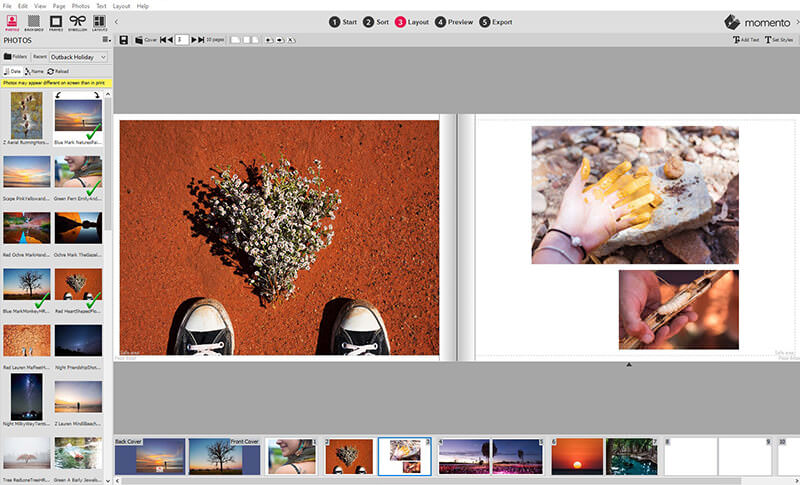
"Layout View" is one of the two main ways that your photobook can be presented to you in the Momento software (the other is Sort View).  Layout View fills the main centre portion of the screen.  The main feature of Layout View is each page of your photobook is presented exactly as it would be when finally printing, allowing you to make adjustments, customisations and embellishments to the page and see the results instantly.

Layout view is selected by clicking on the Layout tab at the top of the centre portion of the screen:

You can also use the F3 key on the keyboard.

The other main way of working with your photobook, Sort View, allows you to see all photos in your photobook on the same screen and make changes to photos on several pages at once.  It is easy to switch between Sort View and Layout View at any time, by simply clicking on their tabs at the top of the centre portion of the screen.

The Purpose of Layout View

Layout View is where you can view and edit each page individually, making adjustments, customisations and embellishments to each photo on the page (or the page as a whole).

This is where the creative fun of making a photobook truly begins!

What you can do with Layout View

Layout View contains many options for individually designing each page of your photobook, including:

All these options are detailed below.

Selecting a Photo or Group of Photos for Editing

A photo (or more than one photo) must be selected before being adjusted.  There are several ways of selecting one or more photos, as follows:

Undoing Changes

If you make a mistake at any time when you're making changes to your photos or your pages in Layout View (or indeed any other view), you can "undo" your changes - rewinding your photos or your page back to the state they were in before you made the change.

This is achieved in one of the following ways:

Notes:

Navigating the Pages in Your Photobook

To view any existing page other than the one you're currently viewing, you can use the four navigation buttons at the centre of the top of the Layout View:

The number in between these buttons shows you the number of the page you're currently viewing.  Page "0" is the cover page (the photobook binding).

You can also navigate between pages by clicking on any of the "thumbnail" versions of the pages at the bottom of the screen:

Adding, Deleting and Moving Pages

To create a new, blank page in your photobook:

  1. Click the   button in the top-left corner of Layout View (alternatively you can select the Insert new page... option from the Page menu, or press Ctrl-Ins on the keyboard)
  2. A box will appear asking you where you'd like to locate the new page.  The default location for the new page is immediately after the current page:
  3. Select the most appropriate location for the new page (you may need to type in a page number), and click the OK button.

The new page can always be moved later if it is in the wrong place.

Note:  To quickly add a new, blank page at the end of your photobook, press the Ins (insert) key on the keyboard)

To move a page to a new location (reordering a page):

  1. Make sure the page to be moved is currently shown in Layout View
  2. Click the  button in the top-left corner of Layout View (alternatively you can select the Move page... option from the Page menu, or press Ctrl-Shift-Ins on the keyboard)
  3. A box will appear asking you where you'd like to move the current page to:
  4. Select the most appropriate location for the page (you may need to type in a page number), and click the OK button.

To delete a page from your photobook:

  1. Make sure the page to be deleted is currently shown in Layout View
  2. Click the  button in the top-left corner of Layout View (alternatively you can select the Delete page option from the Page menu, or press Ctrl-Del on the keyboard)
  3. A box will appear asking you to confirm that you want to delete the current page:

Note:  This will not delete the photos on that page from your computer.  The copies of the photos on your computer will be untouched, and will still be available to be added to any other page of your photobook.

Adding Photos to Pages

Photos are added to your photobook by dragging them from the Photos Panel to the centre portion of the screen (Layout View in this case).  For full details of how to do this, see the help section on the Photos Panel.

Deleting Photos from Pages

If you decide to remove a photo from a page on your photobook:

  1. In the Layout View (the centre portion of the screen), and using the photo selection techniques described above, select the photo(s) you wish to remove.
  2. Right-click on the selected photo and click the Delete option from the pop-up menu.  You can also use the Delete key on the keyboard.

Note: This will not delete the photo from your computer - it will only cause that photo to no longer display on that page of your photobook.  The copy of the photo on your computer will be untouched, and will still be available to be added to any other page of your photobook.

Moving Photos Around the Page

The simplest way to move a photo (or a group of photos) from one place on a page to another is to drag it (them) with your mouse:

  1. In the Layout View (the centre portion of the screen), and using the photo selection techniques described above, select the photo(s) you wish to move.
  2. Click and hold down the left mouse button on any one of the selected photos
  3. Move the mouse until the photo is in the correct (or nearly correct) position
  4. Release the left mouse button

Fine-Tuning the Location of a Photo

Whilst this technique is simple and easy, it's not always possible to get the photo in the exact position you want, down to the last millimetre.  For micro-adjustments to the location of a photo (or group of photos) on the page, you need to use the keyboard:

  1. In the Layout View (the centre portion of the screen), and using the photo selection techniques described above, select the photo(s) you wish to move.
  2. Use the arrow keys on your keyboard (up, down left and right) to nudge the photo(s) 1 pixel in that direction
  3. Hold down the Shift key while using the arrow keys to move the photo(s) 10 pixels at a time in that direction

Swapping Photos

If you drag a photo on top of another photo on the page, the photos will be swapped.  You will be shown a message alerting you to this fact:

It is possible to disable this action and have one photo appear superimposed (fully or partially) on top of another.  This is done by unticking the Replace Mode option in the Edit menu.  When Replace Mode is unticked (turned off), then you get a different message when you drag one photo on top of another:

Tip:  You can reverse the effects of Replace Mode by holding down the Alt key on the keyboard while dragging a photo. For example, if Replace Mode is enabled (ticked in the Edit menu) and you wish to move a photo over another without it replacing, then hold down the Alt key while clicking and dragging the photo to its new position.  The reverse is also true (if Replace Mode is not enabled, you can get one photo to replace another by holding down the Alt key).

For more information about locating one photo on top of another, please refer to the help section on Layers, below.

Using the Layout Menu

It is possible to move a photo (or group of photos) to any one of several predefined positions on the page (e.g. the top-left corner) by using the program's Layout menu.  Please see the section on the Layout menu for more information.

Edges

If you move a photo too close to the edge of the page, or beyond the page's edge, a message will pop up on the screen alerting you to this fact.  If you are comfortable that you would like some part of the photo to be cut off by the edge of the page, then you can safely ignore this warning.

Relative Alignment

You will sometimes wish to position one photo so that it is perfectly aligned with one of the other nearby photos on the page.  For example, the photos below would look more professional if they were aligned so that their top edges were all in line with each other:

To achieve this:

  1. Using the photo selection techniques described above, select all the photos that should share a common edge (in the example above, you would select all three photos)
  2. Right-click on any one of the selected photos, and select the Relative align sub-menu, and then the Top (or Bottom) option within that sub-menu.  The photos will then align on their top (or bottom) edges:

The same applies, of course, to the left and right edges of a group of (vertically stacked) photos.

Notes:

Tidy Page

The Tidy page option, in the Layout menu, analyses the current page and identifies any photo edges that are close to being aligned with each other but not exactly aligned (within about 1mm of each other).  It then adjusts these edges so they are exactly aligned.  As such, it’s a quick and handy tool designed to save you time lining up photos along their edges.  It also works with embellishments.

To use the Tidy page tool:

  1. Ensure you are in Layout View.  It is not necessary to have any photos/embellishments selected, but there must be two or more photos/embellishments on the page.
  2. Select the Tidy page option from the Layout menu
  3. If the photos are moved into a position with which you are not happy, use the Undo command (in the Edit menu) to reverse the action of the Tidy page tool

Note:  The Tidy page tool has no effect on the alignment of text boxes

Working with Layers

If you ever need to have one photo (or other embellishment or graphic) overlapping another on a page, either partially or completely, then you will need to understand the notion of layers.

Every photo (and other graphic) on a page exists in its own unique layer - a little like a stack of papers on a desk.  If the photos are side by side (not overlapping), then it's difficult to tell which one is "above" the other.  However, if one photo is moved (see Moving Photos Around on a Page, above) so that it overlaps another, then one photo will appear above the other one, obscuring the one below.  If the photo "on top" is larger than the one "underneath", then it would be possible to totally obscure the lower photo with the upper one.

Momento allows you to adjust the layer of each photo so that it's above or below the layers of the other photos on the page.  Again, if the photos do not overlap, then there is no point in adjusting their layers.

In the example below, one photo is partially obscuring the other.  This is not a problem in itself, but we would prefer the "upper" photo to actually be the "lower" one:

We have two choices here:  We can raise the "lower" layer, or we can lower the "upper" layer.  The procedures for each are very similar.  In this example we will lower the "upper" photo:

  1. Right-click on the "upper" photo
  2. In the Layers submenu of the pop-up menu, select the Send backward option:
  3. The "upper" photo is now "behind" the "lower" photo:

Notes:

Scaling (Resizing) Photos

Once a photo has been placed on a page, it can be resized - enlarged or reduced in size.  This is done as follows:

  1. In the Layout View (the centre portion of the screen), and using the photo selection techniques described above, select the photo you wish to resize.
  2. By clicking and dragging the green arrows on the markers around the outside of the photo, you can make the photo smaller or larger, as shown below:
     
    Two examples of dragable resize markers are circled in red

Notes:

Relative Sizing

When creating a professional-looking photobook, it is sometimes important to ensure that all photos on a given page are exactly the same size, or perhaps the same width or height.  Momento provides many shortcuts for size-matching of photos:

For example, to resize a group of two or more photos to have the same width as the widest photo (largest left to right) in the group:

  1. In the Layout View (the centre portion of the screen), and using the photo selection techniques described above, select two or more photos that you wish to resize, including the photo that has the desired width.
  2. Right-click on any one of the selected photos, and select the Widest option from the Size to submenu.  Alternatively, the Size to submenu is also available from the program's Layout menu.

The above steps are the same for resizing a photo (or group of photos) as follows:

Cropping (Trimming) Photos

"Cropping" a photo involves trimming the edges of a photo to remove unwanted parts of a photo.  For example, before cropping, a photo may look like this:

While an example of the same image with cropping applied may look like this:

To crop a photo:

  1. In the Layout View (the centre portion of the screen), and using the photo selection techniques described above, select the photo you wish to resize.
  2. By clicking and dragging the red arrows on the markers around the inner edge of the photo, you can make the photo smaller or larger, as shown below:

    Two examples of dragable crop markers are circled in red

Note:  You can remove all cropping from a photo by selecting the Clear cropping option from the program's Photos menu.

Adjusting which part of the photo is shown inside the cropped area

Occasionally you will find that the visible portion of a cropped photo is the perfect size on the page, but the wrong part of the photo is shown.  An example of this is below:

It is, of course, possible to adjust the cropping as detailed above, but this is fiddly and time-consuming, and runs the risk of altering the displayed photo size on the page.  It is far easier and quicker to simply move the photo itself within the cropped frame.  This is done as follows:

  1. Click on the cropped photo.  The red and green drag handles appear around the edge of the photo, and the cropped portion of the photo (the part of the photo that is not visible normally) is shown in a lighter colour around the frame:
  2. Click in that lighter part of the photo (outside the frame) and drag the photo until the correct part of the photo is shown within the frame
  3. Click another part of the page, and the photo will be shown correctly cropped/framed:

Rotating Photos

Sometimes a photo will appear on your pages upside down or sideways. For example:

To correct this:

  1. In the Layout View (the centre portion of the screen), and using the photo selection techniques described above, select the photo you wish to rotate.
  2. Click on the "rotate handle" (the red circle in the centre of the photo) and drag the handle (and the photo) clockwise or counter-clockwise

Special Resizing Options

To rotate a photo (or group of photos) exactly 90 degrees clockwise (to the right), you can use any one of the following options:

Similar options exist for rotating a photo counter-clockwise (to the left).  The keyboard shortcut for this is Ctrl-[.

Spanning panorama photos across two pages

A Spanned photo is one that spreads across a books binding from the left (even) page to the right (odd) page. Momento automatically duplicates a small amount of your photo in the margin so that when the book is bound, the photo will join up perfectly.

To span a photo, simply right-click on it and select the Span photo item. if the image isn't already crossing the edge of the page that will be bound, then the photo will jump to that position automatically. Any action you take on that photo will automatically be updated on the adjacent page. For example, if you drag the photo to a new location, the other part of the photo on the next page will automatically update. The page thumbs at the bottom of the screen will always update to give a good overview of the photo position.

To remove the span, right-click and deselect the Span photo item. The other part of the photo on the adjacent page will automatically be deleted. When removing the span, the photo will move itself fully back on to the page.

A spanned photo is indicated by this icon:

When a photo spans two pages, there are some limitations regarding the inserting, deleting and moving of pages as this can potentially affect spanned photos later in the book.

Inserting pages: if there are any spanned photos in a book after the insertion point then you will be presented with three options when inserting a page:

  1. Insert 2 pages in order to maintain page spans later in the book
  2. Insert 1 page and remove any page spans later in the book
  3. Cancel

Deleting pages: if there are any spanned photos in a book after the page to be deleted then you will presented with three options

  1. Delete the current page pair (even and adjacent odd)
  2. Delete the current page only and remove any page spans later in the book
  3. Cancel

Moving pages: if there any page spans after the current page position, or any page spans after the destination page position, then the page pair can be moved or 1 or 2 single blank pages may be inserted in order maintain other page spans throughout the book.

Spanned photos can be dragged up and down the sort list however this may remove the span setting. An Span icon is overlaid on the spanned photo's thumbnail.

Using Panels

Momento provides several panels on the left-hand side of the screen, each one containing various items that can be inserted onto the pages of your photobook, such as photos, backgrounds and graphical embellishments.  The one you will probably be most familiar with at this stage is the Photos panel, which displays all the photos in the currently selected folder for insertion into your pages.

Layout View is the perfect view for working with panels, as the results of inserting any item onto a page can be instantly seen.  Each panel can be is accessed by clicking on a small icon contained in a tab at the top of the panel area (the left portion of the screen).

For more information about what each panel is for, and how to insert items from those panels onto your page in Layout View, please see the following help sections:

Proceeding to Cover View

When you have completed the layouts for all the pages of your photobook, you are ready to proceed to Cover View to design the dust jacket for your photobook.