Backgrounds
You can turn any photo or graphic in to a background image that will fill the whole page. Use your own photo or one of Momento's pre-designed Backgrounds.
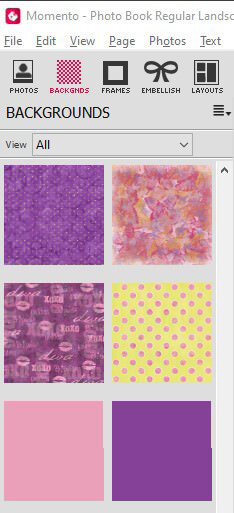
Momento Backgrounds
Momento has created a series of background images including colourful designs, themed images, patterns and lightly textured single colour graphics, which are designed for optimum print performance.
Backgrounds Panel
The Backgrounds Panel can be accessed by clicking on the Backgrounds icon in the Content Panel sub-menu available in Sort View, Layout View and Cover View.
Download more Momento Backgrounds
Go to the Updater Panel to browse and select more Backgrounds packages. Click the Content tab to browse all packages, not just the new additions. Once the package is downloaded, the new Backgrounds will be available in the Backgrounds Panel.
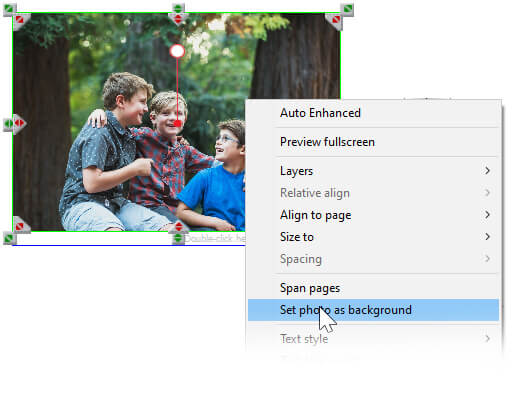
Use a photo as a Background in Layout View
- Go to the Photos Panel
- Drag the photo onto the page
- Right-click on the photo
- Choose Set photo as background
- The photo will fill the page
To change the area of the photo visible in the Background
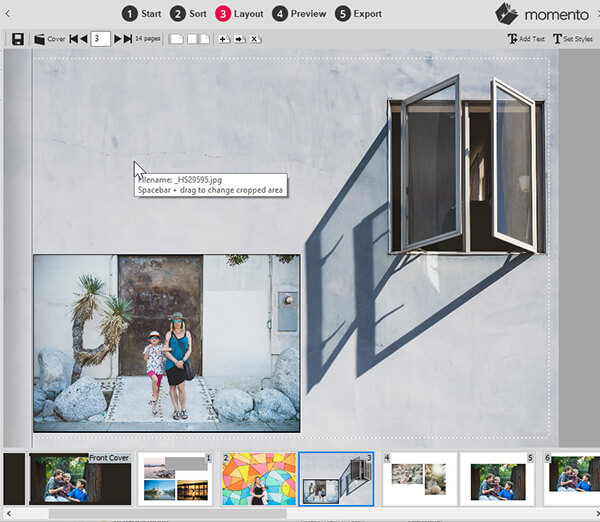
A photo selected as a Background is automatically centred in the page and may not have the preferred part of the photo visible in the frame. To change the part of the photo visible:
- Hold down the Spacebar
- Then click & drag the photo until the preferred part of the image is visible in the frame
- Release the Spacebar
- The Background image will redraw with your preferred alignment in the frame
Use a Momento Background
In Layout View
- Select the page that should have the new background
- Locate the background image in the Backgrounds Panel
- Click on the background image and drag it onto the page.
- The page will be redisplayed with the new graphic as its background
.jpg)
Edit a Background
You can edit and adjust a Background just as you would any other photo or graphic in a Project, but first you need to 'Clear' the background.
Clear a Background
There are two ways you can clear a Background in Layout View::
- Right-click on the Background and select Clear Background from menu or
- Select Clear Background Image from the Layout Menu.
- The Background will change to appear as a medium-sized image on top of all other photos
- The image can now be edited like any other photo (i.e. crop, rotate, change saturation)
Reset a Background
After the edits have been made you need to reset the image to a Background. There are two ways to do this in Layout View:
- Right-click the image and select Set Photo as Background
- or select the Set as background option from the Layout Menu
Delete a Background
To permanently delete a Background from your project:
- Right-click the image or go to Layout Menu and select Set as background
- Press the Delete key on the keyboard
- The Background will be removed from your project
Background Layer
As the Background Layer, all other photos, text and elements on the page will sit on top of the Background. See the Layer & Swap section for more details.
Image Credits: Heartstory
