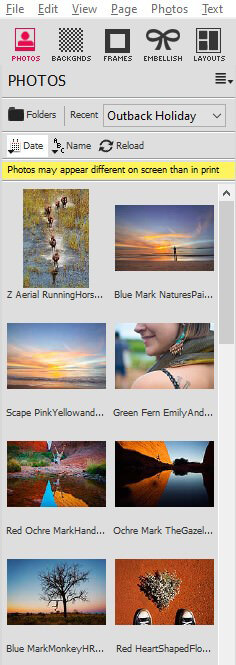
Photos Panel
Photos are added to your photobook by dragging them from the Photos Panel in the left portion of the screen to the centre portion of the screen (Sort View, Layout View or Cover View). If the photo you wish to add to your photobook is not visible in the left part of the screen, you should do one or more of the following:
- Click on the Photos Panel tab at the top of the panels area of the screen
- Scroll down until you can see the photo you wish to add
- Resort the Photos Panel so that the photo you need is visible
- If the photo you want to add is in a different folder, you should open that folder and display the photos therein
These options are explained in detail below.
Selecting the Photos Panel
The Photos Panel is selected by simply clicking on the left-most tab of the six tabs at the top of the left portion of the screen (the panels area):
Adding Photos to Pages
Assuming that the photo that you want to add is visible in the left side of the screen, you can now add it to your photobook.
To add a photo to Sort View:
- Click on the photo you wish to appear on a page
-
Hold the left mouse button down and drag the photo from the Photos Panel into the main list so that the mouse pointer is positioned above or below an existing photo in the list. The new photo will then appear in the list above or below that existing photo. The location of the new photo will be indicated by a solid horizontal line above or below the existing photo, as shown below:
Notes:
- You can drag photos into the middle of the existing list of photos, to the beginning of the list (making it the first photo on the first page of your photobook), or to the end of the list (making it the last photo on the last page of your photobook)
- To add all photos from the current Photos Panel folder, click the button at the top of Photos Panel. New pages will be created for these photos (Momento will automatically decide how many photos to put on each page)
Using the Layout Wizard
When you originally created your photobook using the New Book Wizard, you were presented with the option to use a theme. If you did so, then every new photo that you add to your photobook in Sort View will automatically be positioned on the page according to the photobook\'s theme.
If you do not want Momento to do this automatically, then you should untick the tick-box at the top of the Sort View screen.
If your photobook was originally created with no particular theme, and you leave the tick-box ticked, then when you switch from Sort View to Layout View, the Layout Wizard will appear to assist you in laying out the new photo(s) on the page(s):
Refer to the help section on The Layout Wizard for information on how to work with the Layout Wizard.
To add a photo to Layout View:
- Click on the photo you wish to appear on a page
- Ensure the page you want the photo to appear on is visible in the centre of the screen
-
Hold the left mouse button down and drag the photo from the Photos Panel onto the page, as shown below:
Sorting Photos by Date or Name
- Click on the button to view your photos in the order of the date they were taken. This can be useful when the chronological sequence of the photos is important.
- Click on the button to view your photos alphabetically by their filename. This can be useful when you have named your photos in a way that will help you layout your photobook. For example, if you were creating a family history photobook, you may name each photo according the year. For example: 1940_01.jpg, 1940_02.jpg, 1940_03.jpg, etc.
Note: If you click the button, Momento will create several pages to hold all the photos, and the order that the photos are placed automatically on the pages will be governed by the order in which they\'re displayed in the Photos Panel. In situations like this, it is important to choose the correct sorting order.
Choosing Photos from Different Folders
If you wish to add one or more photos to your photobook that are on your computer (or a CD-ROM in the CD-ROM drive) but not currently visible in the Photos Panel, then you must cause the Photos Panel to show the photos from the folder that contains your new photos, as follows:
-
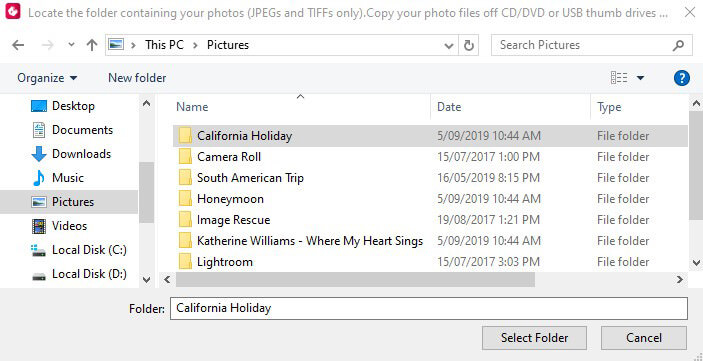
Click on the button located in the top-left corner of the Photos Panel. The Browse for Folder box appears:
- Select the folders on your computer that contains the photos you wish to add to your photobook and click the OK button. The photos from that folder will appear in the Photos Panel, and the previous folder\'s photos will no longer be shown. Note that this will not change the photos you have chosen to include in your photobook.
Swapping Between Recent Photo Folders
If the photos that you plan to insert into your photobook are in more than one folder on your hard disk, you will probably find yourself constantly wanting to switch the Photos Panel to show photos from each folder. When you need to do this, it is not necessary to always click the
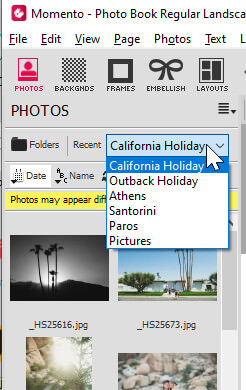
button (as described above). All recently opened folders are remembered by Momento and stored in a drop-down list at the top of the Photo Panel.
To access this list of recently opened folders:
-
Click the down-arrow next to Recent. The list of recently opened folders will drop down:
- Choose the folder you require. If the folder is not in the list, you will have to click the button, as above.
Note: Each time you choose a different folder, the Library will display only the photos from that folder (not from any other folder), however this will not change the photos you have chosen to include in your photobook.
Gallery