Send & Order
After you have exported your Master Book File (MBF) and thoroughly proofed your Proof PDF, you are ready to send your file to Momento for ordering and printing. The Master Book File you send to Momento is our own encrypted file that can only be unlocked and printed by us. Please see Export View for details on creating and locating your Master Book File. There are a four ways you can send us your Master File:
- Uploading a file via Momento’s software
- Uploading a file via the Momento website
- Sending us your file on a USB, CD or DVD
- Using our Hightail link (this option is only available if the above options do not work)
Upload File
Uploading a file is the best way to get your file to us if you have broadband internet access. You can upload a file from within the Momento software or by signing in and uploading via the Momento website.
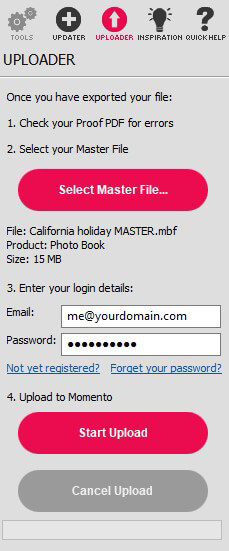
Upload your file from the Momento Software
- Open the software
- Go to the Uploader Panel
- Enter your Momento Sign In details
- Browse your computer to find and select your MBF file
- Click the Start Upload button
- When complete, Sign In to the website to order
Upload your file via the Momento website
- Sign In
- Your 'My Account' page will appear, then select 'Upload a new project'
- Then click on 'Select file' and a new window will open
- Click the Browse button to find and select your MBF file
- Click the Open button and you will return to the Upload page
- An optional survey question will appear, once you make your selection, click on SUBMIT and your project will be automatically uploaded.
Mailing your File
For those without broadband internet you can send us your MBF file by copying it to a USB or CD/DVD and mailing it to the address on our contacts page.
When we receive your mail, we will upload the file for you and send an email confirming that it is ready to order. Note: Please label your disc clearly with your name, email address and phone number. Tip: Double check that you have copied the MBF file to the disc, NOT your MBK or Proof PDF.
Place an Order
Visit the Help Centre page on the Momento website for details on how to order your product once you have uploaded your files.
