Colour Management
Colour management is the process that ensures the colours of your images remain accurate from the camera or scanner, to the screen and on to paper. We have gone to great lengths to ensure the colours in our books are as accurate as possible, however we are only half of the equation - a few basic steps by you when preparing your images will ensure you get the best printed results. Colour management is a vast topic so this page only contains an overview of the subject, but it should be enough to help you achieve predictable and accurate prints.
3 golden rules
- Profile your monitor regularly - if you don't, editing your images could actually be doing more harm than good
- Know the colour space you're working in and the source profile of your images, and always select "embed profile" when saving your files
- Preview your files via our soft proof profiles so you are familiar with the effect of the printer on your images
Colour settings for Momento Pro
Momento Pro takes advantage of an ICC based colour managed workflow featuring the following:
- Image colour profiles: if your image files have profiles embedded, the Momento software will recognise your working colour space. If your working profile isn't AdobeRGB (1998) then your images will be automatically converted to Adobe RGB (1998) during the export process. If no profiles are detected, sRGB is assumed to be the files' colour space and then the images are converted to Adobe RGB (1998). Your original files are not altered.
- Monitor profile recognition: if the 'Monitor Profile' setting is enabled in Program Settings, the software will display your images accurately on screen. This can slow software performance on older computers.
- Soft proofing: we provide soft proof ICC profiles for each stock that we print on. By viewing your images via these profiles you can see the effect of the print process on your colours using a program such as Adobe Photoshop.
- Printer calibration: maintenance and calibration are conducted on the printer many times each day to ensure the best colours are maintained
Profiling your monitor
To benefit from Momento Pro's colour managed workflow, we suggest that you update your monitor profile at least monthly. Profiling devices are available from about $200 from a range of suppliers and are relatively easy to use. Twenty minutes spent profiling your monitor could potentially save much times and stress down the line. Most importantly, it will be very difficult for us to solve any issues you have with the colour in our prints if your monitor isn't profiled.
Source colour profile
A source colour profile defines the range of colours (the gamut) that can be produced by a capture device such as a camera or scanner. Nearly all digital cameras and scanners use one of the following colour spaces:
- sRGB: the most common colour space for consumer equipment as it doesn't have the greatest range of colours and so is a good base profile for most devices.
- Adobe RGB (1998): the preferred working colour space for most professionals as it has a much wider range of colours in its gamut. We recommend shooting and editing in AdobeRGB
Some devices come with their own custom profiles and you can create your own profiles to more accurately describe your devices. Whether you are using one of the above standard profiles or a custom profile, always ensure your images are saved with that profile embedded so that the Momento Pro software can interpret your images correctly.
Important notes
- Always be aware of the colour space of an image - if the source colour profile is known, then you can freely 'convert' to another space.
- Never 'assign' a colour profile to an image unless you are sure that it is the profile that matches the file contents.
Colour settings for Photoshop
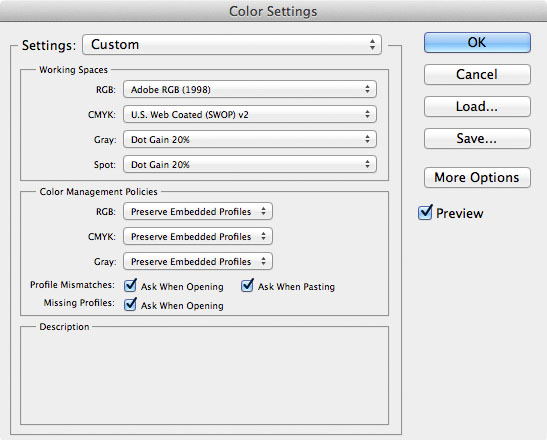
Below are the Colour Settings that we recommend using for Photoshop. To access these settings, go to Colour Settings in the Edit menu (this may be in different locations for different versions of Photoshop). Other programs will have a similar settings window.
- The main section to focus on is the top one, "Working Spaces". If for what ever reason you don't wish to work in Adobe RGB, then the RGB field should reflect your preferred profile, however we recommend Adobe RGB as not only does it have a very wide range of colours, it is also the native colour space for the Momento Pro software.
- Note: we strongly advise against using the ProPhoto ICC Profile as your working space
- The settings in the Colour Management Policies section are set to be the most rigorous and will always warn you if your files are not in the preferred space. If you are confident about your files, you could change this section to reflect your preferences.
Soft proofing images
To see the effect of printing on your images, you can preview, or soft-proof, your images via the soft proof profiles provided here. Assuming you are working with a profiled monitor, this will help you assess whether the edits on images are within the capabilities of the printer or whether you can adjust the colours to suit the printer and your chosen page stock.
How to install and use the Momento soft-proof profiles
- Download the ICC profiles
- Extract the contents of the ZIP file
- Install the ICC files:
- Windows: Right-click on the ICC file and select Install
- Mac: copy the files to the folder: \Users\ [your user name] \Library\ColorSync\Profiles - The profiles will appear in your image editing software with the name starting with "Momento"
How to soft proof in Photoshop
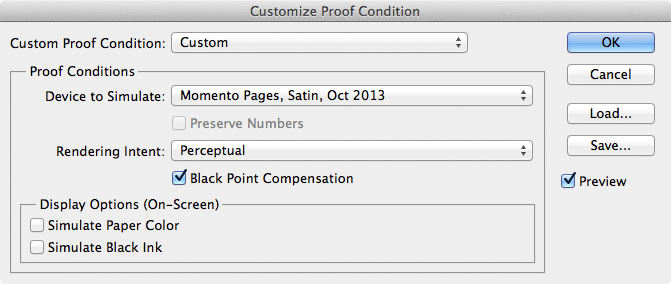
- In the View menu select Proof Setup > Custom..., and set the fields as shown below, and choose the profile for appropriate Momento stock
- Once the profile is selected, you can use Ctrl+Y (Windows) or Command+Y (Mac) to switch the profile on and off and observe any effects on your image
- You can also use Ctrl+Shift+Y (Windows) or Command+Shift+Y (Mac) to enable a the gamut warning - this highlights all the pixels in your image whose colours are outside the colour range of the printer on the selected paper stock
Important notes
- Never 'convert' to the soft proof profiles as this will actually have a negative effect on your image
- It is not advised to work with this output profile enabled while you edit the colours of your photos. Instead, use the profile after editing, to ensure that the colours are not effected too greatly by the printer.
- If you are unfamiliar with CMYK printing please be aware that your monitor is capable of producing much brighter and more saturated colours than printed paper, however the perceived printed image will still look correct if good colour management is adhered to.
- With the exception of the profiles for our inkjet prints, our profiles can't be used in Lightroom as it only supports RGB profiles.
